

Rebase
Rebase moves selected revisions relative to a target. Whatever is selected (or the highlighted revision if nothing is selected) when you press r becomes the source.
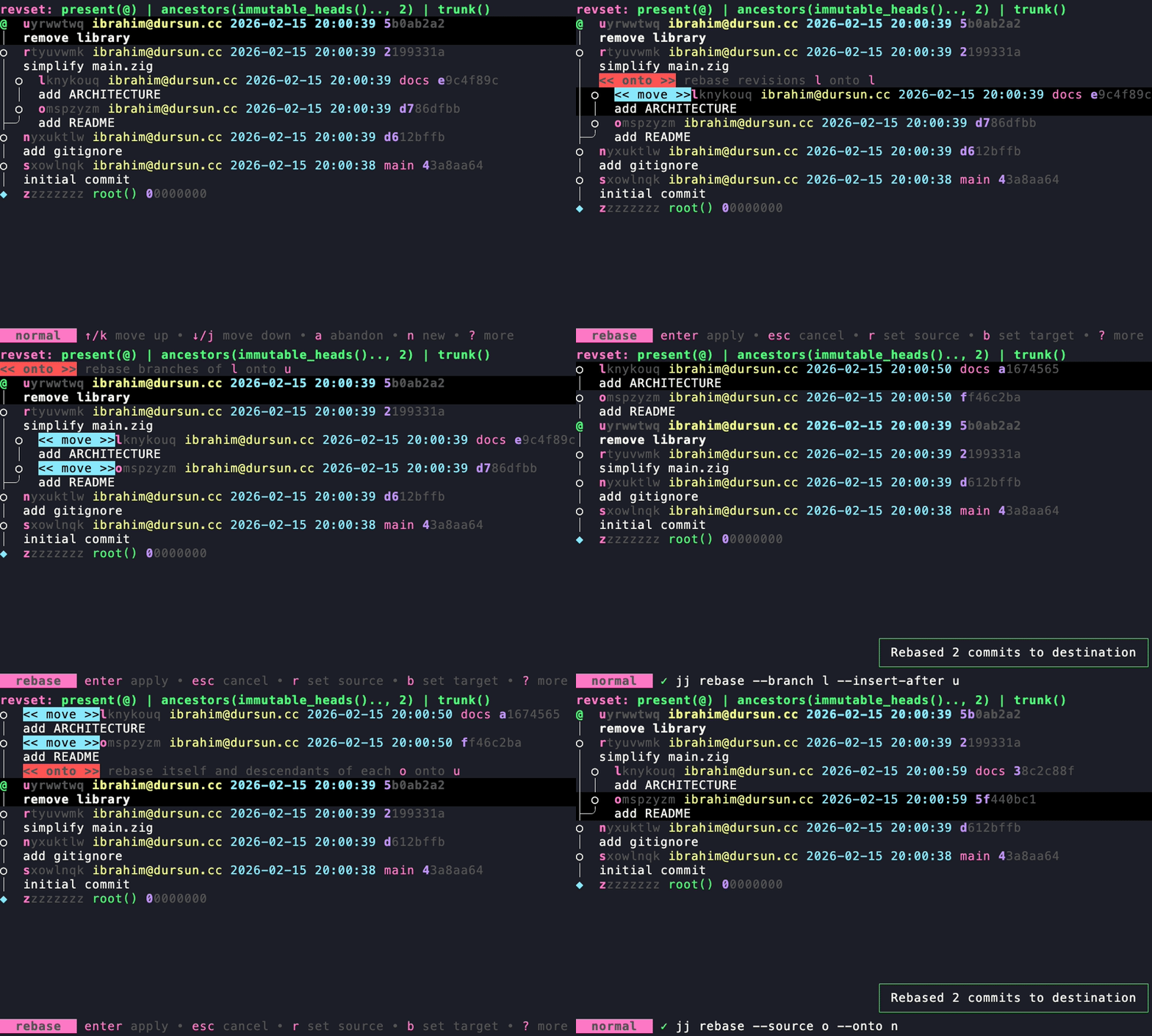
Press r in the Revisions view to open rebase mode.
Source modes
Section titled “Source modes”r: revision — only the highlighted/selected revision(s), without descendants (jj rebase -r)shift+b: branch — the selected revision’s whole branch relative to the destination (jj rebase -b)s: descendants — the selected revision and all its descendants (jj rebase -s)
Target modes
Section titled “Target modes”Navigate to the target revision, then press:
oonto: moves source onto the target. Existing descendants of the target are not affected. (jj rebase --onto)aafter: inserts source after the target, rebasing the target’s existing descendants on top. (jj rebase --insert-after)bbefore: inserts source before the target, rebasing the target and its descendants on top. (jj rebase --insert-before)iinsert: two-step — navigate to the “after” revision and pressito mark it, then navigate to the “before” revision and pressenter. Source revisions are slotted between the two points.t: open target picker
Target picker
Section titled “Target picker”When the target isn’t visible in the current revset (e.g. it’s filtered out, or it’s a remote branch you’re not tracking), press t to open the target picker. It lists bookmarks and tags, and also accepts a raw revset expression typed directly.
up/down: move selectiontab/shift+tab: autocompleteenter: applyalt+enter: force applyesc: cancel
Options
Section titled “Options”eskip emptied: when enabled, any revision that becomes empty as a result of the rebase is abandoned automatically instead of being kept as an empty commit.
Apply and cancel
Section titled “Apply and cancel”enter: apply rebasealt+enter: force applyesc: cancel
Other useful keys in rebase mode:
f: ace jump@: jump to working copyj/k,pgup/pgdown: navigation