

Preview
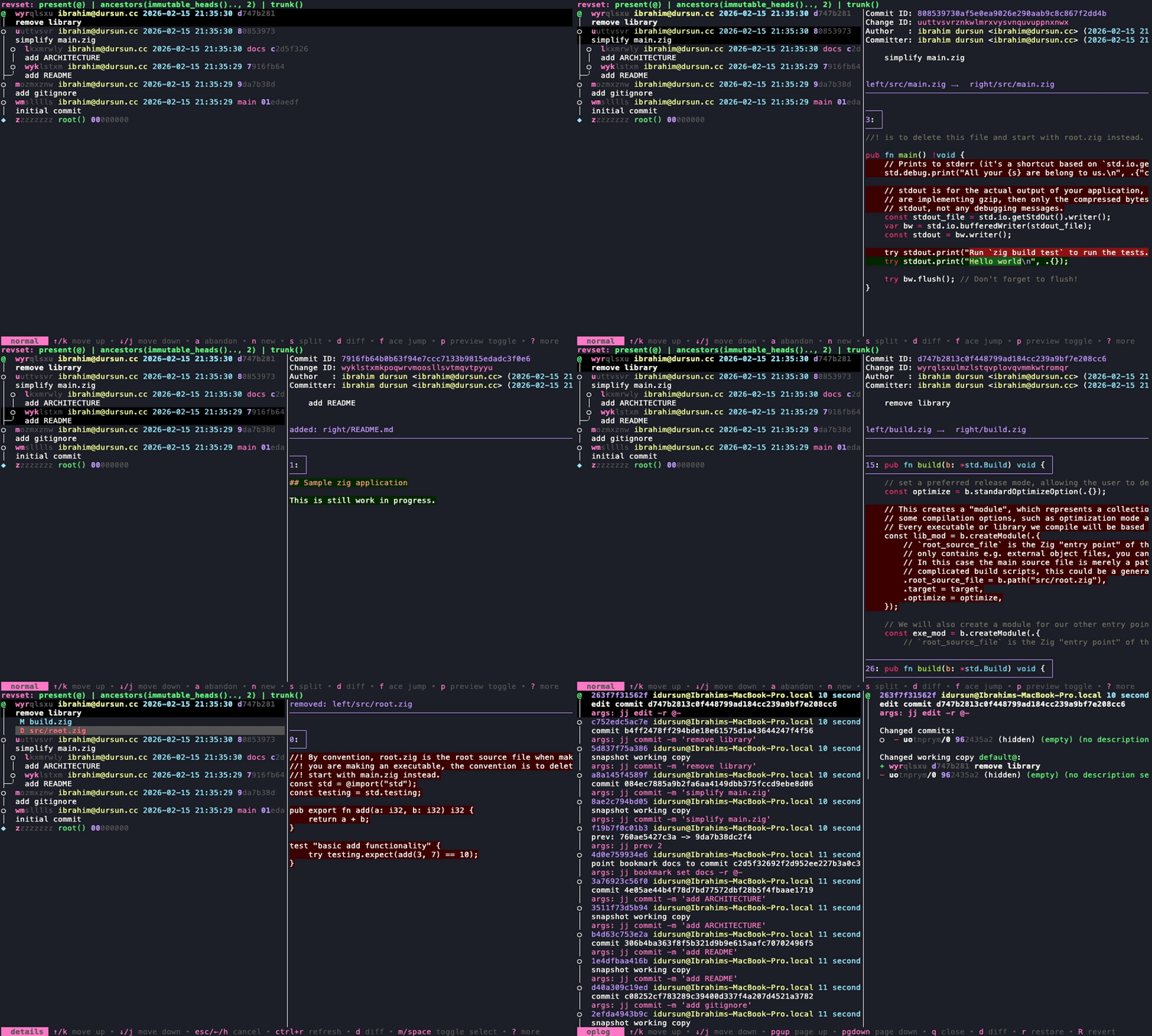
Press p to toggle the preview pane. It updates automatically as you navigate — what it shows depends on what is currently selected.
Context-aware content
Section titled “Context-aware content”| Context | What preview shows |
|---|---|
| Revision highlighted | Diff of that revision (jj show) |
| File highlighted in details | Diff of that file (jj diff) |
| Evolog entry highlighted | Patch diff of that entry (jj evolog -p -n 1) |
| Oplog entry highlighted | Operation details (jj op show) |
p: toggle preview on/offshift+p: move preview to bottom (toggle between side and bottom)ctrl+n: scroll one line downctrl+p: scroll one line upctrl+d: scroll half page downctrl+u: scroll half page upctrl+h: expand preview widthctrl+l: shrink preview width
When mouse support is available, you can scroll the preview and drag the separator to resize it.
Position
Section titled “Position”[preview]position = "auto" # auto | right | bottomshow_at_start = falsewidth_percentage = 50.0width_increment_percentage = 5.0auto(default): uses bottom in tall terminals, right in wide terminalsright: always on the rightbottom: always at the bottom
Customizing preview commands
Section titled “Customizing preview commands”All preview commands are configurable. The placeholders $change_id, $commit_id, $operation_id, and $file are substituted at runtime.
[preview]revision_command = ["show", "--color", "always", "-r", "$change_id"]evolog_command = ["evolog", "--color", "always", "-r", "$commit_id", "-p", "-n", "1"]oplog_command = ["op", "show", "$operation_id", "--color", "always"]file_command = ["diff", "--color", "always", "-r", "$change_id", "$file"]