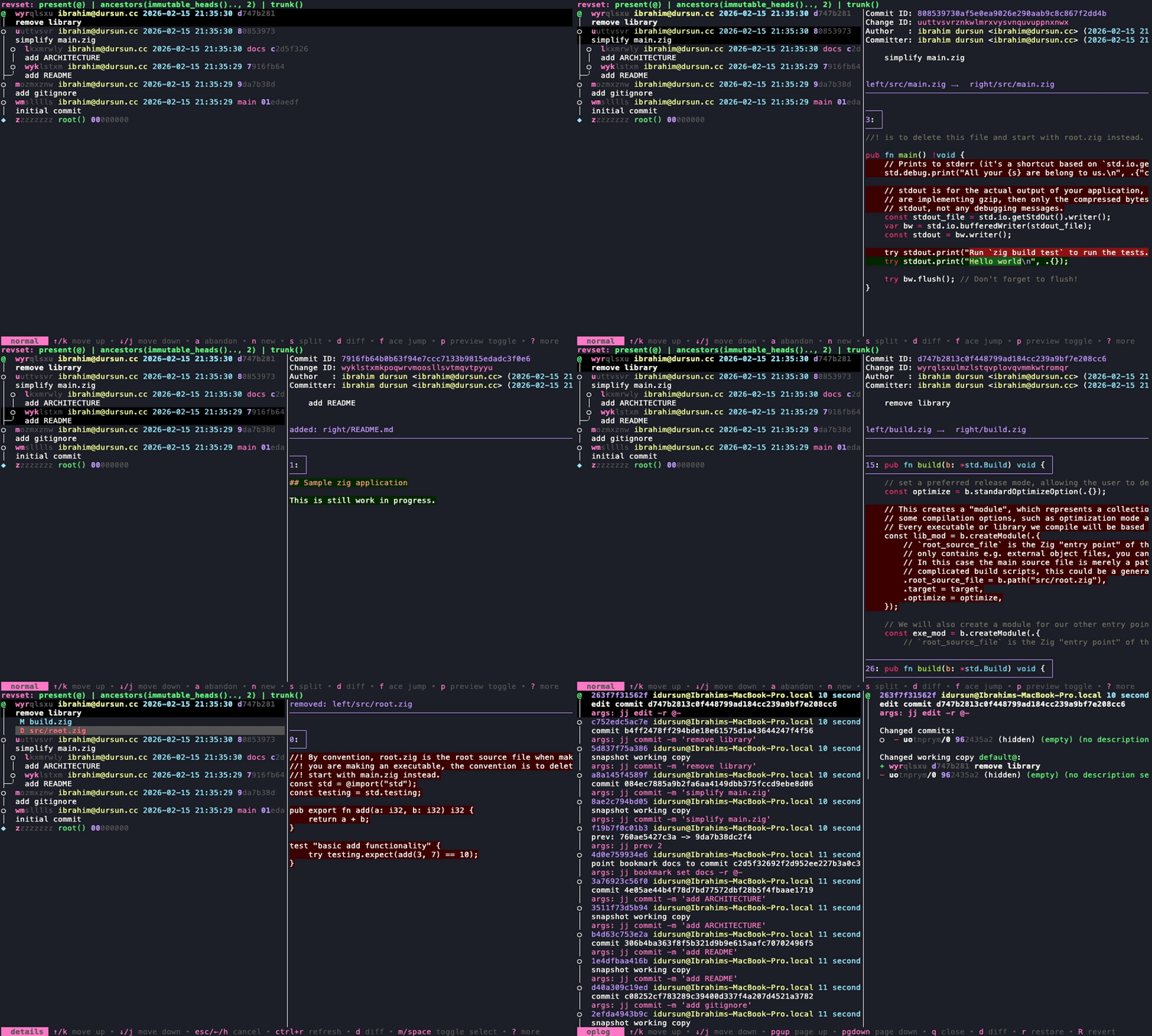
Feature Showcase
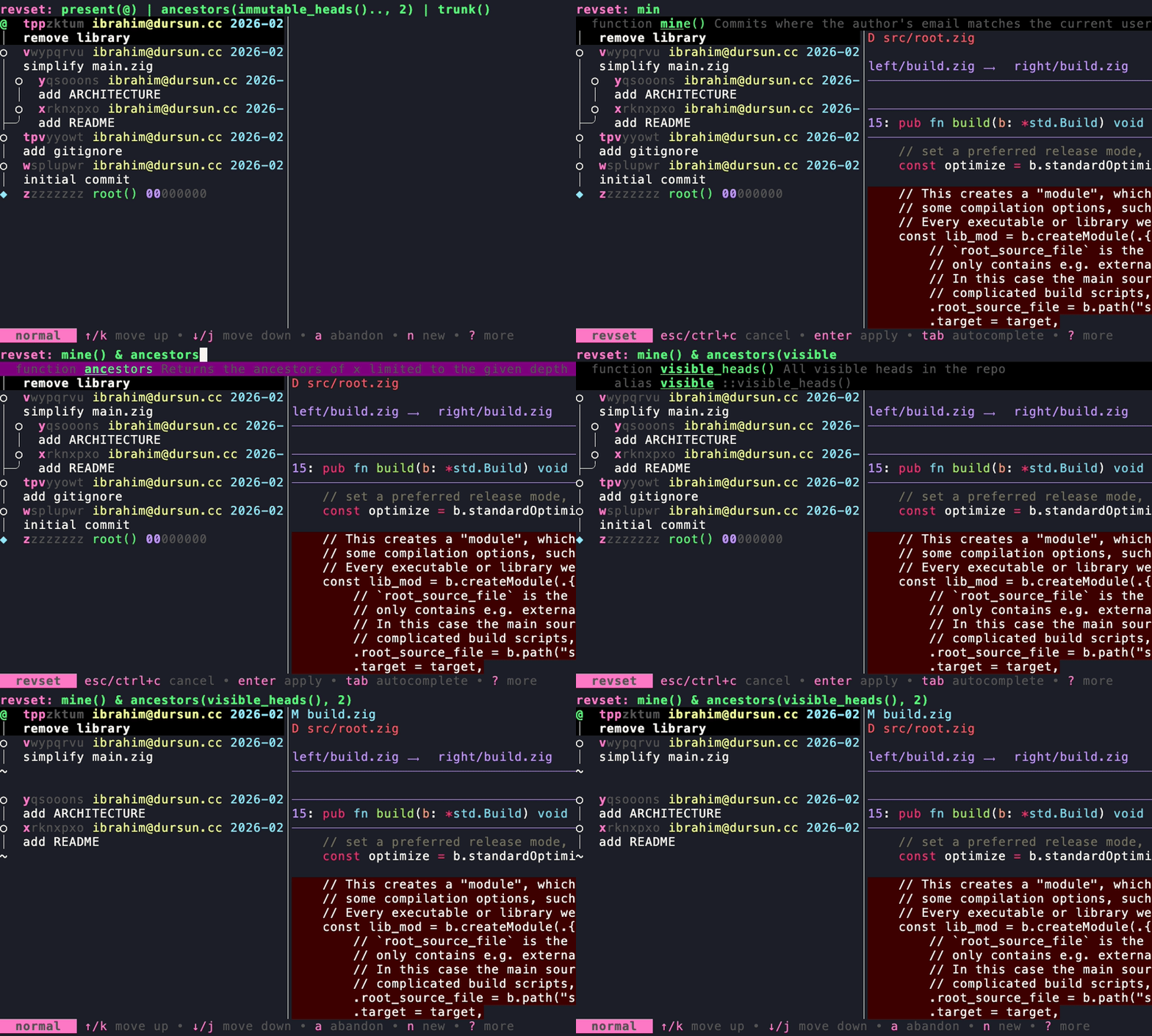
Change revset with auto-complete
Section titled “Change revset with auto-complete”You can change revset while enjoying auto-complete and signature help while typing.
Rebase
Section titled “Rebase”You can rebase a revision or a branch onto another revision in the revision tree.
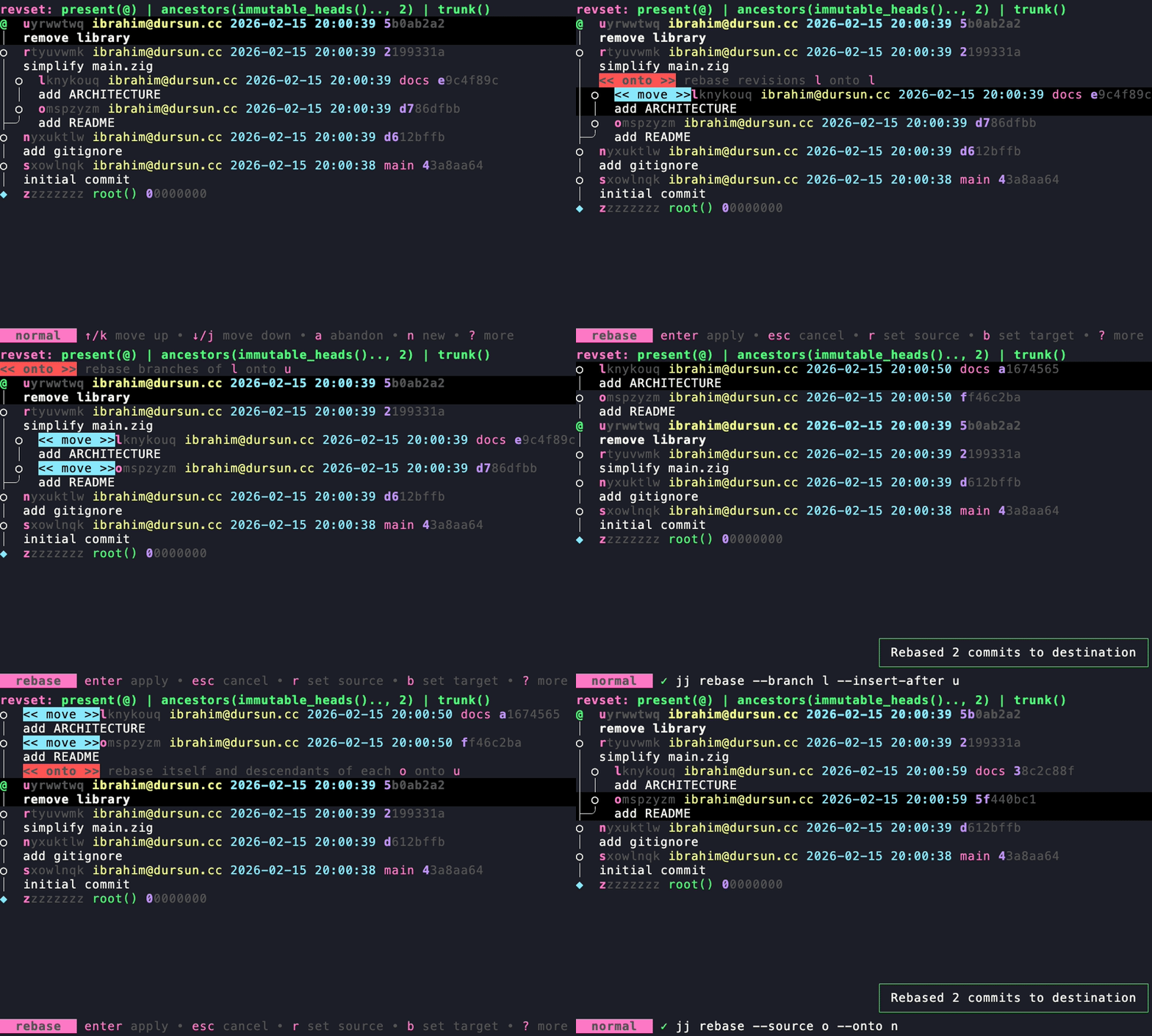
See Rebase for detailed information.
Squash
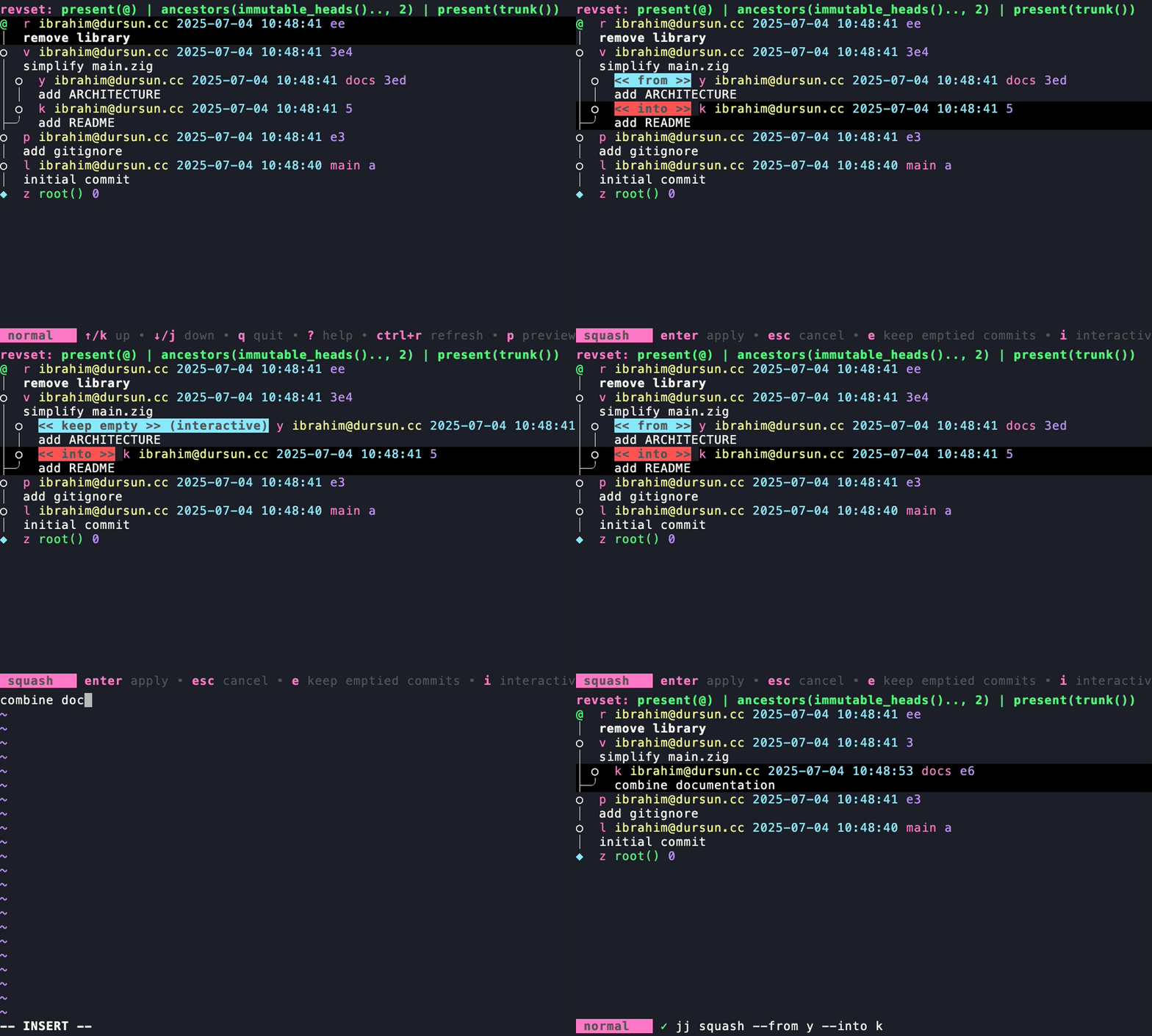
Section titled “Squash”You can squash revisions into one revision, by pressing S. The following revision will be automatically selected. However, you can change the selection using j and k.
Show revision details
Section titled “Show revision details”Pressing l (as in going right into the details of a revision) will open the details view of the revision you selected.
In this mode, you can:
- Restore selected files using
r(pressiin the dialog for interactive chunk restore) - Split selected files using
s - View diffs of the highlighted by pressing
d
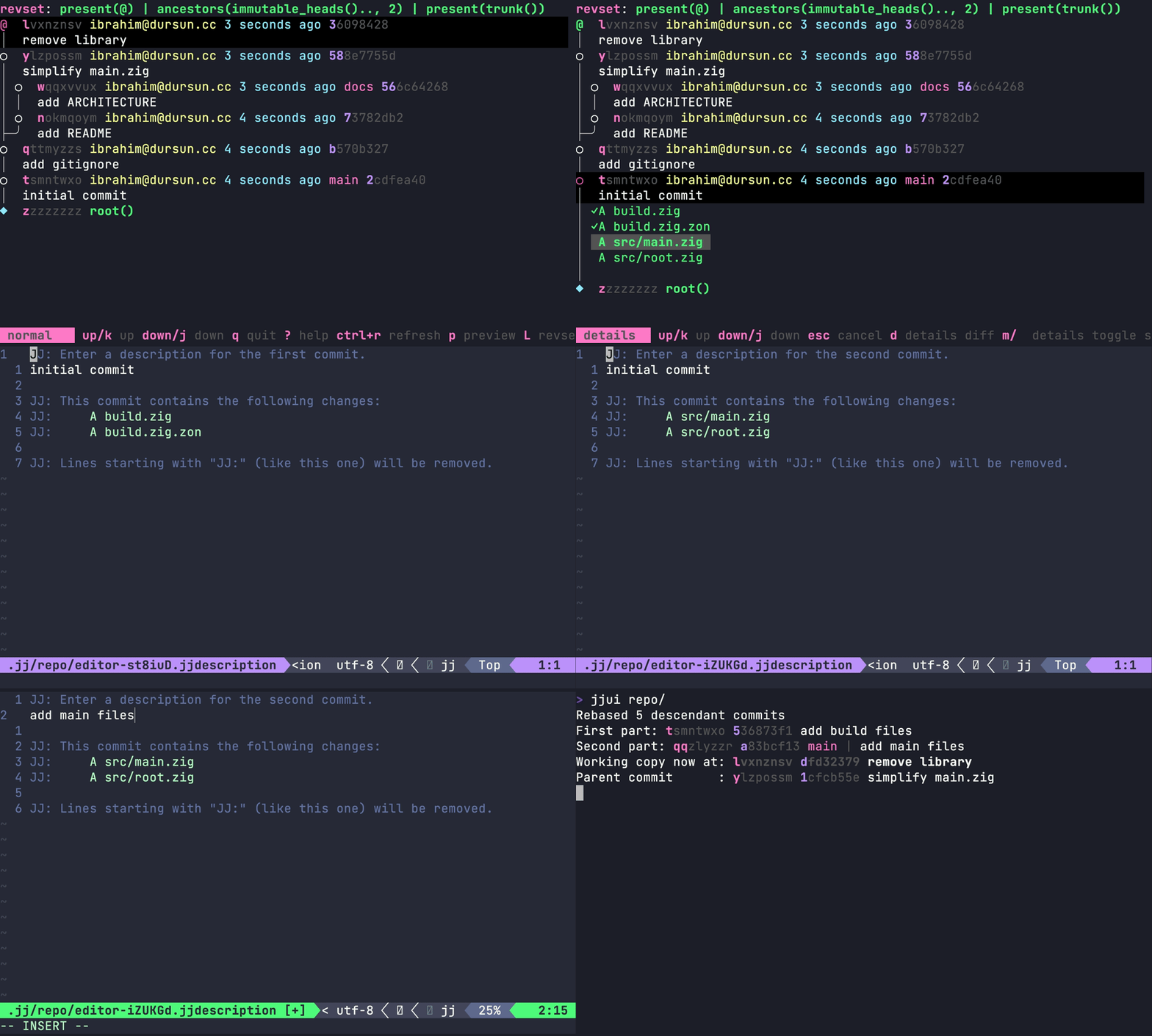
For detailed information, see Details wiki page.
Bookmarks
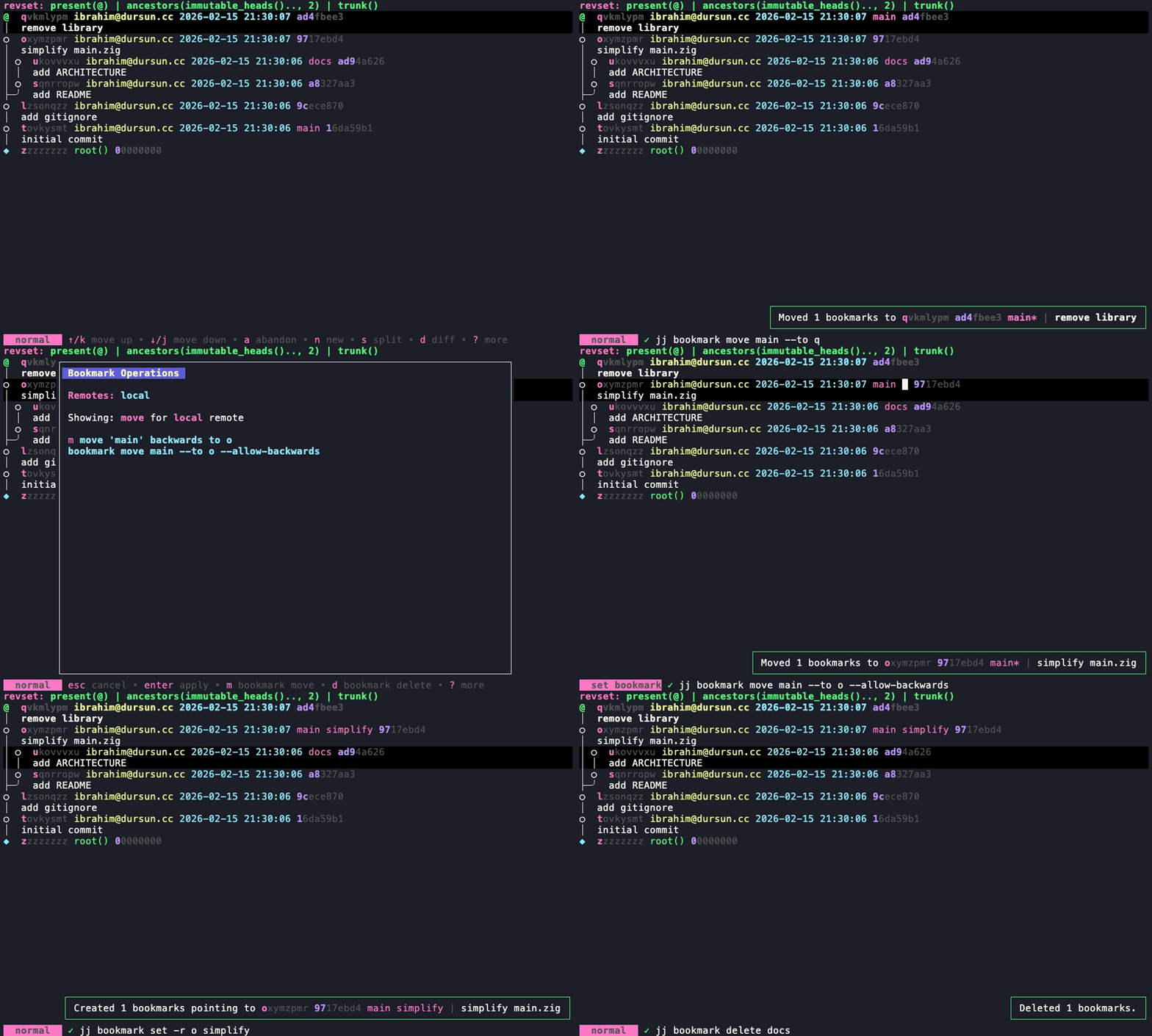
Section titled “Bookmarks”You can move bookmarks to the revision you selected.
Op Log
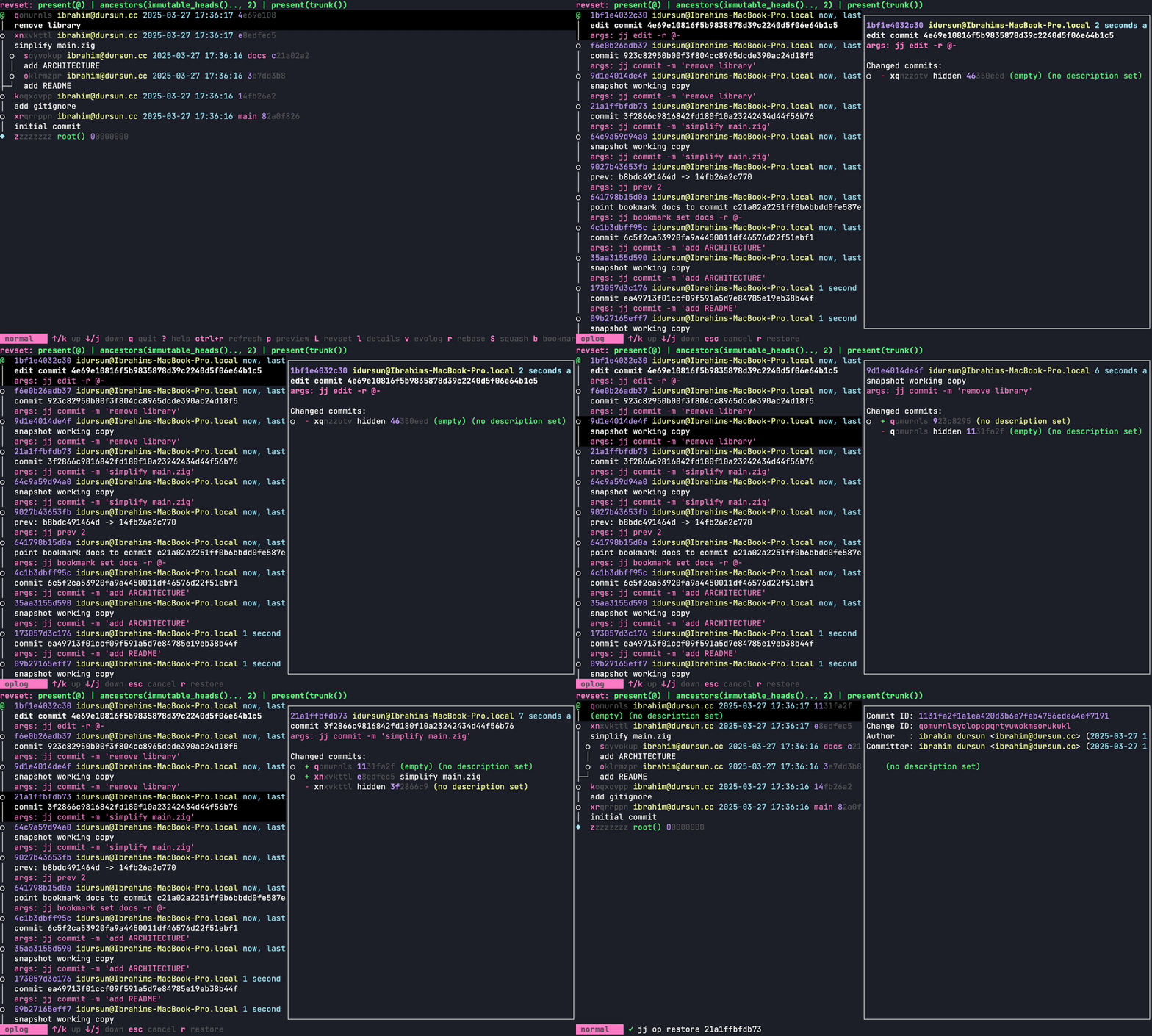
Section titled “Op Log”You can switch to op log view by pressing o. Pressing r restores the selected operation. For more information, see Op log wiki page.
Preview
Section titled “Preview”You can open the preview window by pressing p. If the selected item is a revision, then the output of jj show command is displayed. Similarly, jj diff output is displayed for selected files, and jj op show output is displayed for selected operations.
While the preview window is showing, you can press; ctrl+n to scroll one line down, ctrl+p to scroll one line up, ctrl+d to scroll half a page down, ctrl+u to scroll half a page up.
Additionally, you can press d to show the contents of preview in diff view.
For detailed information, see Preview wiki page.